Mode Options
![[Previous]](image-lib/prev.gif) |
![[Contents]](image-lib/contents.gif) |
![[Next]](image-lib/next.gif) |
Mode Options
In this chapter:Mode options panel
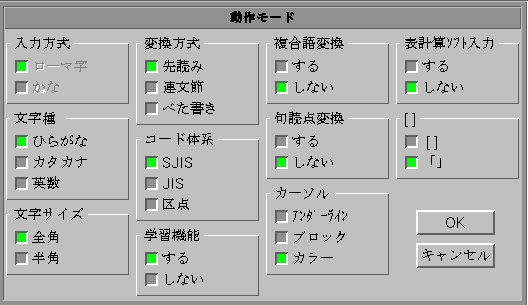
VJE has various mode options. You can set these options in the mode options panel. To open the mode options panel, click on the Mode Status Button of the VJE Toolbar and select オプション (Options). The mode options panel looks like this:
 |
Some options may not be implemented at the time of the software release. See the Release Notes for more information. |
Input preferences
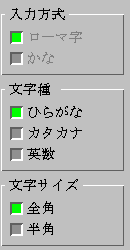
Input method (Roman/Kana), input mode (Hiragana/Katakana/Eisuji), and input character size (full/half width) can be set in the mode options panel.
In the 入力方式 box, select ローマ字 for Roman input method and かな for Kana input method.
In the 文字種 box, select ひらがな for Hiragana input mode, カタカナ for Katakana input mode, and 英数 for Eisuji input mode
In the 文字サイズ box, select 全角 for full-width characters, 半角 for half-width characters.
See the section on Preferences in the Basic VJE Operation chapter for details about input preferences.
Conversion options
VJE provides various conversion options. You can set these options by clicking the radio buttons in the mode options panel.
Parsing methods
There are three different ways in which VJE parses phonetic strings for conversion. In the 変換方式 box, select one of the following:
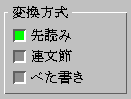
- 先読み (Quick parsing mode)
VJE parses suffixes and postpositions of the input string and looks up dictionaries as you type in phonetics. The homonyms list appears immediately when you press the conversion key.
- 連文節 (Bunsetsu parsing mode)
VJE starts parsing the input string when the conversion key is pressed. In this mode, you can input phonetic strings faster, because VJE won't parse the string until you press the conversion key.
- べた書き (Automatic parsing mode)
VJE parses the input string as you type in phonetics and automatically converts the string without waiting for you to press the conversion key.
Code sets
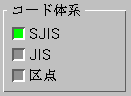
You can select one of three code sets for code conversion. In the コード体系 box, select シフトJIS for Shift-JIS, JIS for JIS, and 区点 for Kuten code sets.
Compound words conversion
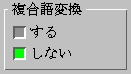
By default, VJE breaks phonetic input strings into bunsetsu and parses for stems, suffixes, and postpositions before converting. When the compound words conversion option is set, VJE attempts to parse phonetics as compound words that have no suffix or postposition. With this option, converting the names of people and places is optimized. In the 複合語変換 box, select する (yes) to set this option and しない (no) to disable it.
The table below shows the difference between bunsetsu conversion and compound words conversion when you input a phonetic string "あおいなみ" (aoinami)
| Options | VJE converts the phonetics into: | |
| Bunsetsu conversion | 青い波 | |
| Compound words conversion | 葵奈美 | |
With the bunsetsu conversion, VJE interprets the first three phonetics あおい (aoi) as a word consisting of the stem 青 (ao) and the suffix い (i), which makes the adjective 青い (blue). The second two phonetics なみ are converted into 波 (wave), as a noun to be modified by the first word.
With the compound words conversion, VJE converts the first phonetics "aoi" into a noun 葵, which is often a person's last name, and "nami" into a woman's name 奈美.
Conversion at punctuation
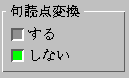
When this option is set, VJE will convert the phonetic string automatically when punctuation symbols (。、!?)are entered from the keyboard. In the 句読点変換 box, select する (yes) to set this option and しない (no) to disable it.
Cursor options
VJE offers three different cursor styles: underline, block, and color block. The default style is colored block style, which provides much more information than the other two styles.
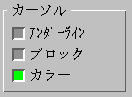
- アンダーライン (Underline)
Underline style presents the current input as black letters on a white background, with a black line indicating the cursor. A thick underline indicates a word that hasn't yet been converted, while a thin underline indicates a word that has already been converted.
- ブロック (Block)
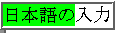
Block mode presents a black rectangular cursor instead of an underline. The block is black for unconverted text, and green for converted text.
- カラー (Color Block)

Color block mode presents a great deal of information about the text under the cursor based on the state of that text. The following chart indicates the colors for each state.
Foreground Background State Black Grey Normal text White Blue Unconverted text White Black End-of-line cursor Yellow Black Cursor on converted phrase Yellow Blue Other converted phrase Blue White Editing Converted phrase Cyan Black Phrase converted Kana Green White Direct mode text White Green Cursor beyond edited phrase
Other options
Learning mode
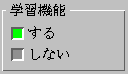
When learning mode is on, VJE will bring up the homonym that was confirmed last time you entered the same phonetics at the top of the list. In the 学習機能 box, select する (yes) to turn on learning mode, しない (no) to turn it off.
Spread sheet mode
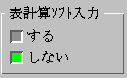
When this option is set, VJE will automatically confirm numerals and operators according to the currently selected character size. Numeral data and formulas can be input more efficiently, because you don't have to convert and confirm numerals and operators. In the 表計算ソフト入力 box, select する (yes) to set this option and しない (no) to disable it.
|
|
|