input-cfg
![[Previous]](../prev.gif) |
![[Contents]](../contents.gif) |
![[Index]](../keyword_index.gif) |
![[Next]](../next.gif) |
input-cfg
Configure the mouse or pointer
Syntax:
input-cfg [-s server_name] [-x position[%][r]
          [-y position[%][r]
Runs on:
Neutrino
Options:
- -s server_name
- The name of the Photon server:
If server_name is: This server is used: node_path node_path/dev/photon fullpath fullpath relative_path /dev/relative_path - -x position[%][r]
- The x coordinate of the upper-left corner of the window, in pixels, or as a percentage of screen width if % is specified. If r is specified, the coordinate is relative to the current console.
- -y position[%][r]
- The y coordinate of the upper-left corner of the window, in pixels, or as a percentage of screen height if % is specified. If r is specified, the coordinate is relative to the current console.
Description:
You can use input-cfg to configure input devices, such as a mouse:
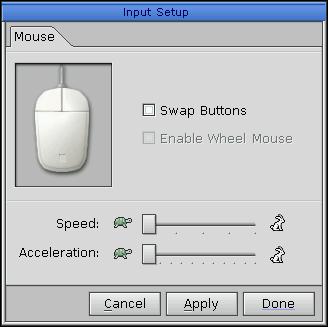
Configuring the mouse.
You can:
- Swap the mouse buttons.
By default, you use the left mouse button as Select, and the right as Menu. If you control the mouse with your right hand, this arrangement is best, because you use your index finger (which is stronger than your middle finger) for the Select button. Most user interfaces use the Select button more than the Menu button.
If you use your left hand to control the mouse, you should swap the buttons to avoid straining your fingers.
- Enable the mouse wheel (if the mouse has one).
- Adjust the mouse's speed (gain) and acceleration.
 |
This utility needs to have the setuid ("set user ID") bit set in its permissions. If you use mkefs, mketfs, or mkifs on a Windows host to include this utility in an image, use the perms attribute to specify its permissions explicitly, and the uid and gid attributes to set the ownership correctly. |
See also:
Input drivers (devi-*) in the Utilities Summary
Using the Photon microGUI in the Neutrino User's Guide
|
|
|
|